 Pulsarr
Approval queue
Review the requests waiting for your decision, and look back at past ones.
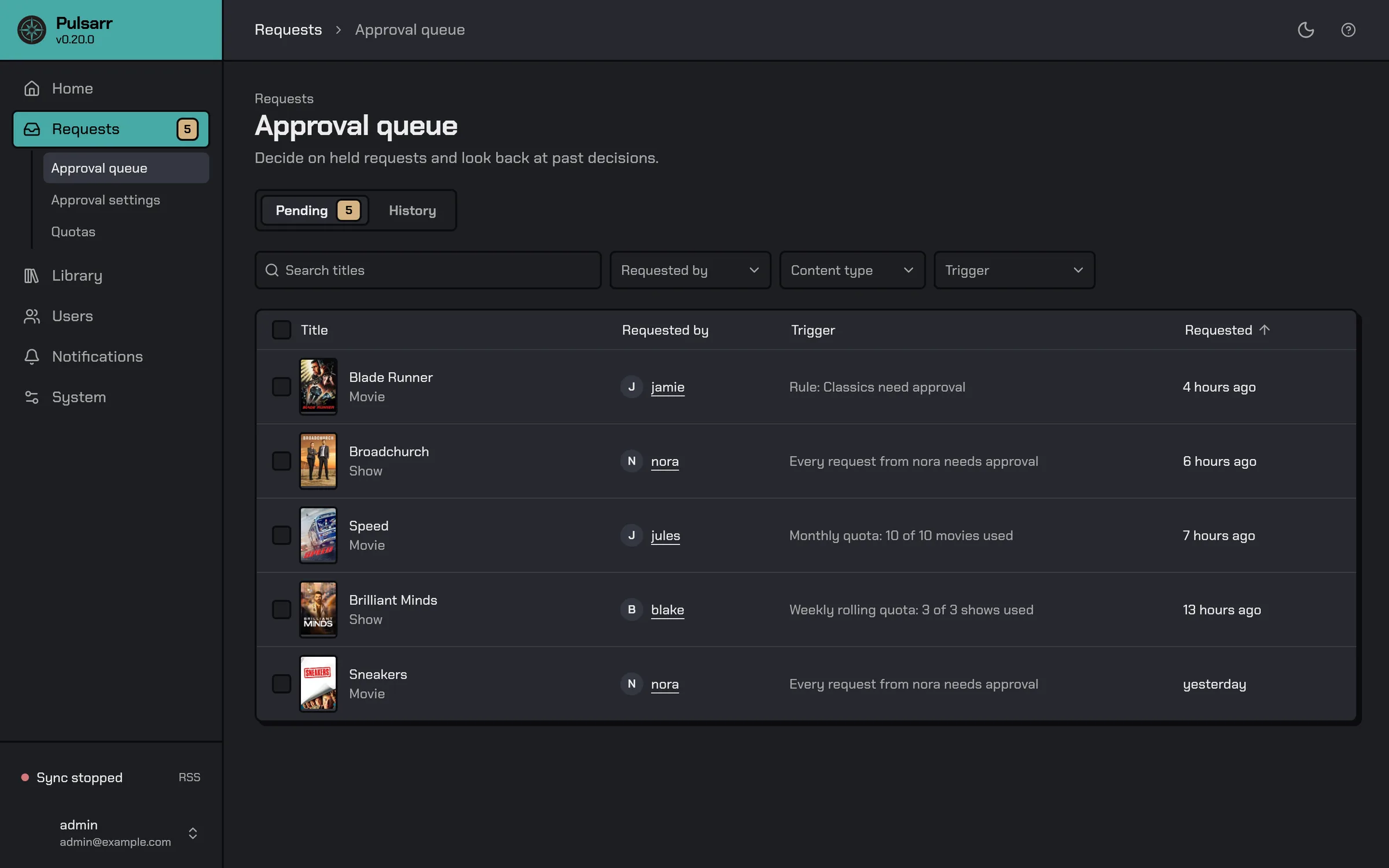
The approval queue is under Requests. Pending lists requests waiting for a decision. History lists approved, denied and expired requests, and requests that never needed approval, marked Auto approved.
Why a request waits
The Trigger column says why each request was held, for example "Rule: Classics need approval" or "Monthly quota: 10 of 10 movies used". There are three reasons:
- Router rule. A Content router route asked for approval.
- Manual flag. The user has Require approval turned on.
- Quota exceeded. The request put the user over their quota.
Use Search titles and the Requested by, Content type and Trigger filters to narrow the list. The Trigger filter has the three reasons above, plus Content criteria for the auto-approved requests in History.
Review a request
Select a request to open it. The review shows why it was held and where Pulsarr will send it.
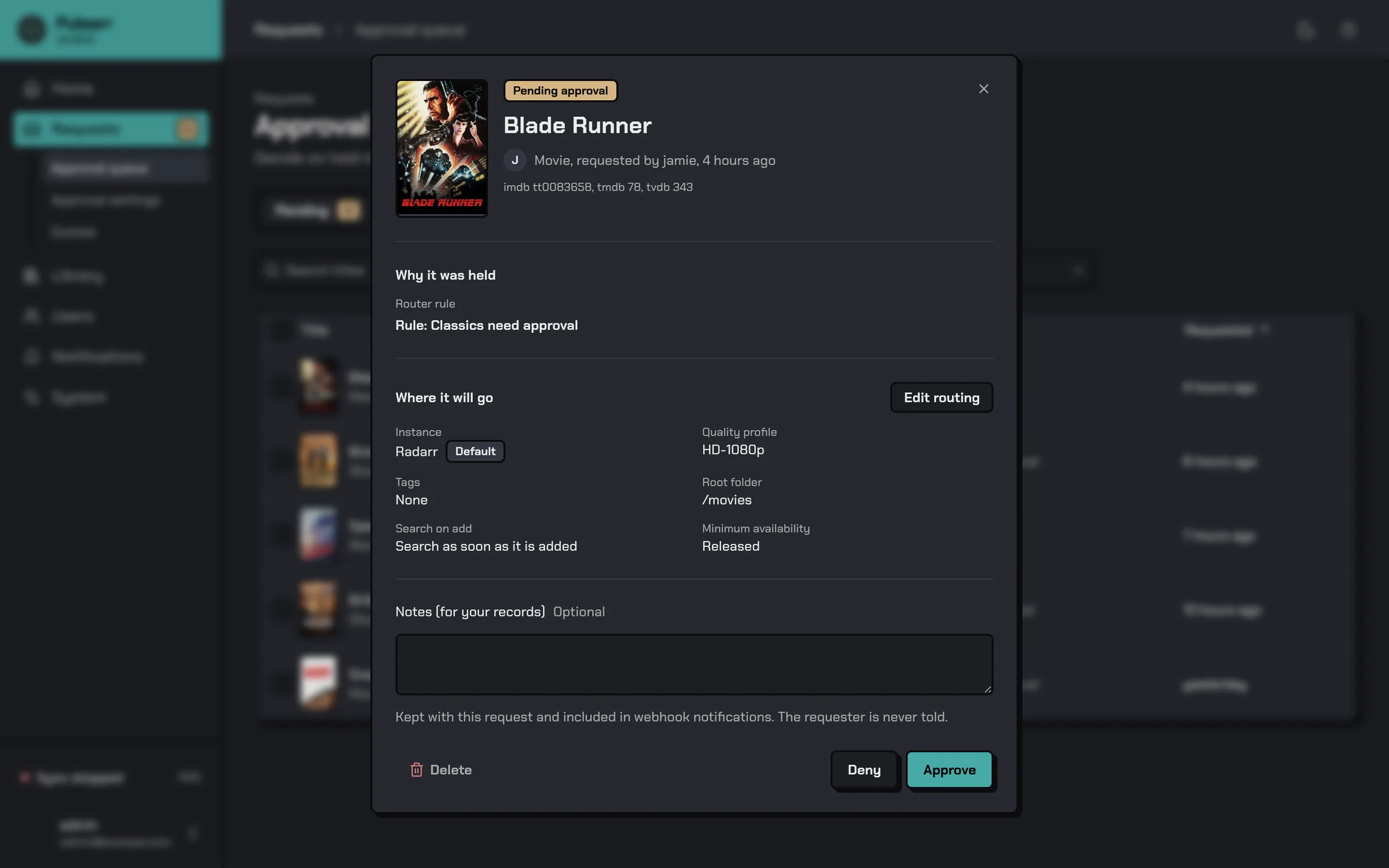
- Approve sends it to the Sonarr or Radarr instance shown under Where it will go.
- Deny sends nothing and moves it to History as denied. You can add a reason for your records before you confirm.
- Delete removes the record without refusing anything. The title can come back as a new request, and anything already sent to Sonarr or Radarr stays there.
To send it somewhere else, select Edit routing, make your changes and select Save routing before you approve. You can change the Instance, Quality profile, Root folder, Tags and Search on add, plus Season monitoring and Series type for a show, or Minimum availability and Monitor for a movie. Changes apply to this request only, and your instance defaults stay as they are. Also send to adds synced instances, which use their own defaults.
Notes you add stay with the request and appear in webhook notifications. The requester never sees them.
Act on several requests
Select requests with their checkboxes, then use Approve, Deny or Delete in the bar that appears. On History, only denied requests can be approved, and the button shows the count, for example Approve 3 requests.
You can also approve and deny requests from Discord with the bot's /approvals command.
Last updated on